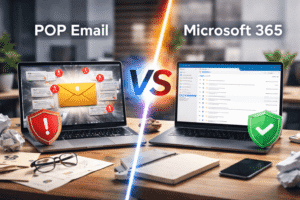
Most businesses assume that moving email and files to Microsoft 365 means everything is backed up and safe forever. It isn’t. Microsoft keeps deleted items for a short, fixed window, and once that window closes, the data is gone.
When a business moves to Microsoft 365, the assumption is usually the same: it’s the cloud, so it must be backed up. Microsoft runs the servers, Microsoft keeps the data safe, and if something goes missing, Microsoft can get it back.
That assumption is wrong, and it’s the kind of wrong that only becomes obvious at the worst possible moment. Microsoft 365 gives you excellent email, file storage, and collaboration tools. What it does not give you is a backup.
The Short Answer: No, It Doesn’t
Microsoft 365 has retention, not backup. Those are different things, and the difference is measured in days.
When someone permanently deletes an email in Outlook, it moves to a hidden Recoverable Items folder and stays there for 14 days by default. An administrator can extend that, but only to a maximum of 30 days. After that, it’s removed from Exchange entirely. Files deleted from OneDrive or SharePoint sit in the recycle bin for 93 days before permanent deletion.
Plenty of articles, and plenty of IT providers, will tell you Microsoft keeps deleted email for 30 days. That’s the maximum an administrator can configure it to. Out of the box, it’s 14 days. If nobody has changed that setting on your tenant, two weeks is your entire safety net.
Retention Is Not the Same as Backup
A retention window answers one question: “did someone delete this recently?” A backup answers a much bigger one: “can I get this back, in the state it was in, whenever I need it?”
| What you need | Microsoft 365 Retention | A Real Backup |
|---|---|---|
| Recover deleted email | 14 days (30 max) | ✓ Long-term |
| Recover deleted OneDrive / SharePoint files | 93 days | ✓ Long-term |
| Recover something deleted a year ago | ✗ No | ✓ Yes |
| Copy stored outside Microsoft’s cloud | ✗ No | ✓ Yes |
| Roll back after ransomware or a bad sync | Limited | ✓ Yes |
Retention figures are Microsoft’s documented defaults for Exchange Online and SharePoint/OneDrive as of this writing; see the sources listed at the end of this post. Your tenant may be configured differently, worth checking.
Microsoft Says This Themselves
This isn’t a gap Microsoft hides. It’s spelled out in two places.
The first is the shared responsibility model. Microsoft’s own documentation is direct about where the line falls: for every type of cloud deployment, including software-as-a-service like Microsoft 365, customer data is the customer’s responsibility, not Microsoft’s. Microsoft’s list of “responsibilities you always retain” starts with data.
The second is the Microsoft Services Agreement, which puts it in plain language: “We recommend that you regularly backup Your Content and Data that you store on the Services.”
Microsoft’s job is keeping the platform running, the servers, the network, the datacenter. Your job is your data. If it gets deleted, overwritten, or encrypted and the retention window passes, there is no support ticket that brings it back.
How Microsoft 365 Data Actually Goes Missing
Almost nobody loses data to a datacenter fire. They lose it to ordinary Tuesday-afternoon events:
- Accidental deletion. Someone clears out a mailbox folder or a SharePoint library and nobody notices for two months, long past both retention windows
- Ransomware and malware. Encryption spreads through synced folders, and the encrypted versions sync straight up to the cloud
- Overwrites. A shared document gets replaced with the wrong version and saved over the good one
- A compromised account. An attacker with mailbox access can delete or alter data before anyone realises the account is breached
- Employee turnover. A licence gets removed when someone leaves, and their mailbox and OneDrive go with it, usually before anyone has checked what was in there
Every one of these has the same shape: the loss happens quietly, and it’s discovered after the recovery window has already closed.
What a Proper Backup Covers
A real Microsoft 365 backup takes independent copies of everything the business actually runs on:
- Exchange Online, mail, contacts, calendars, tasks, in-place archives and public folders
- OneDrive, documents and version history
- SharePoint, site collections, document libraries, lists, permissions and pages
- Teams and Groups, conversations, channels, files, Planner and tabs
What We Use: Keepit
At Twilight I.T. we use Keepit for Microsoft 365 backup. Three things make it the right fit for small business:
- It covers the whole environment. Exchange Online, OneDrive, SharePoint, and Teams/Groups are all protected in one system
- The copies live outside Microsoft. Keepit stores backup data on its own independent cloud infrastructure, in a data centre region you choose, so a problem inside your Microsoft tenant can’t take the backup with it
- The backups can’t be tampered with. Keepit stores data in an immutable format using a blockchain-like Merkle tree structure, specifically to stop attackers manipulating backups
- Retention long enough to be meaningless as a limit. Keepit’s Enterprise Unlimited and Governance Plus plans carry unlimited data retention, no expiry on the backup copies at all. That’s what makes it a backup rather than a longer retention window, and it’s why Keepit is used to satisfy statutory retention mandates such as Germany’s 10-year requirement for financial records
Restores are granular, an individual email, a single file, a whole mailbox, or an entire dataset, restored back to its original location with its structure and metadata intact.
The Offboarding Problem It Quietly Solves
Here’s the one that saves the most money and the most hassle, and almost nobody thinks about it until they’re in the middle of it.
When someone leaves, you want their licence back, that’s a recurring cost for an employee who no longer works there. But you can’t just delete the account, because their mailbox and their OneDrive go with it, and you may need something from either one months later. A contract. A supplier thread. The only copy of a quote.
So the usual workaround is a scramble: export the mailbox to a PST, copy their OneDrive down to a folder somewhere, and hope you can find it again in two years. Multiply that by every departure and you end up with a pile of loose PST files and orphaned folders that nobody has indexed, nobody has backed up, and nobody wants to be responsible for.
Because the backup lives outside Microsoft, deleting the user in Microsoft 365 doesn’t remove their data from the backup. A former employee’s mail and OneDrive files stay in Keepit, searchable and restorable, exactly as they were on the day they left. Reclaim the licence the day they go and stop paying for it.
Keepit’s own documentation describes exactly this: a deleted user is still there to be found, turn on the deleted-items view or open an earlier snapshot, then use the import feature to recover their data from the point in time you need.
And getting it back doesn’t require touching Microsoft 365 at all. Keepit’s mail folders “can be downloaded as PST files,” and “once you have downloaded the PST file, you can directly mount the data back into Outlook using Outlook’s import feature.” Files are the same idea, download them and drop them back into OneDrive or SharePoint wherever they belong.
You also don’t have to take everything. The search is granular: “locate items with ease using inclusive filters by type, date, and size”, and you can open an earlier snapshot to pull from a specific point in time. So if what you need is one quarter’s correspondence, or one supplier thread, that’s what you take.
No standing pile of PST exports. No archive folder on somebody’s desktop that nobody backs up. No paying for a licence purely to keep an ex-employee’s mailbox alive.
Ask your IT provider one question: “If an employee deleted an important folder six months ago and we only noticed today, can we get it back?” If the honest answer is no, you don’t have a backup, you have a retention window.
Frequently Asked Questions
Does Microsoft 365 include backups?+
No. Microsoft 365 includes short-term retention for deleted items, which is not the same thing. Microsoft’s own Services Agreement recommends that customers keep their own regular backups of the content they store on the service.
How long does Microsoft keep deleted emails?+
Permanently deleted items are kept in the Recoverable Items folder for 14 days by default. An administrator can raise that, but the maximum for Exchange Online mailboxes is 30 days. After the retention period expires, the item is removed from Exchange.
What about files in OneDrive and SharePoint?+
Deleted files go to the recycle bin and are retained for 93 days from the moment they were deleted from their original location. After that they are permanently deleted. It’s a longer window than email, but it’s still a window, not a backup.
Isn’t my data safe because it’s in the cloud?+
The cloud protects you from hardware failure, not from deletion. Microsoft keeps the platform running and replicates data across its infrastructure, but if your copy of a file is deleted or encrypted, the replicas are deleted or encrypted too. Microsoft’s shared responsibility model puts customer data squarely on the customer’s side of the line.
Can we delete a former employee’s account and still get to their email later?+
With a proper backup in place, yes. Because the backup is held outside your Microsoft tenant, deleting the user in Microsoft 365 doesn’t remove their data from it, their mail and OneDrive files stay searchable from the snapshots taken while they were still with you. When you need something, you download it straight from the backup: mail comes down as a PST you can import into Outlook, and files download and copy back into OneDrive or SharePoint. Nothing has to be recreated in Microsoft 365 first. That means you can reclaim the licence the day they leave rather than paying to keep a mailbox alive, and there’s no need to maintain a shelf of PST exports “just in case.” Without a backup, deleting the account starts a short retention clock and then the data is gone for good.
We’re a small business. Do we really need this?+
The size of the business doesn’t change the size of the risk, it changes how much a loss hurts. A small business usually has fewer people watching for problems, so deletions tend to go unnoticed for longer, which is exactly the scenario retention windows don’t cover. Backup for a small Microsoft 365 tenant is inexpensive and runs automatically once it’s set up.
Not Sure What’s Actually Protected?
Twilight I.T. can review your Microsoft 365 setup, tell you plainly what is and isn’t recoverable today, and put proper backup in place if it’s missing.
Terms Explained
Not a tech person? No problem. Here’s what these concepts actually mean in plain English.
Sources
- Microsoft Learn: Change how long permanently deleted items are kept for an Exchange Online mailbox
- Microsoft Support: Restore items in the recycle bin that were deleted from SharePoint or Teams
- Microsoft Learn: Shared responsibility in the cloud
- Microsoft Services Agreement: Section 6.b
- Keepit: Backup and recovery for Microsoft 365
- Keepit: Pricing (Enterprise Unlimited and Governance Plus: “Data retention – unlimited”)
- Keepit: customer case study: meeting a 10-year financial-data retention requirement
- Keepit Help Center: Recover a deleted Microsoft 365 user
- Keepit Help Center: Recover data using the PST download
- Keepit: The Keepit platform (search and filtering)